You can define specific settings that apply only to your On Demand sessions. For example, you can change your password and security question settings. At any point, you can change any of these settings to meet your needs.
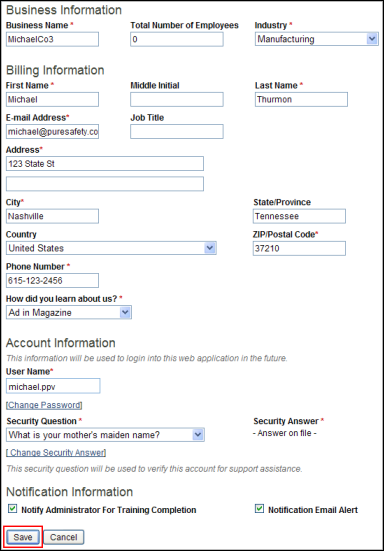
- Click the My Account link in the top navigation bar. The Account Details screen displays.
- Click the Edit Account Details link.
- If
you want to change your password, complete the following steps:
- In the Old Password field, enter your current password.
- In the New Password field, enter the password you will use going forward.
- In the Confirm New Password field, reenter you new password.
- If you want to change the security question, complete the
following steps.
- In the Security Question drop-down, select a question.
- In the Security Answer field, enter your answer.
- Administrators can choose whether they want to receive e-mail notifications when trainees complete their assignments. If you don't want to receive them, clear the Notify Administrator For Training Completion check box in the Notification Information section. This check box is selected by default.
- You can choose whether you want to receive e-mail notifications when you get a new message in On Demand. If you don't want to receive them, clear the Notification Email Alert check box in the Notification Information section. This check box is selected by default.
- Click Save. The user settings are instantly applied to your On Demand session.